Google Translate Image: How to Use It on Phone and Web
By Transpic Team · Sep 2, 2026
Google Translate can translate text inside a photo on the web, Android, iPhone, and iPad. On a computer, open Google Translate, choose Images, select the source and target languages, then upload a file. On a phone, open the Google Translate app, tap Camera, and either point the camera at text or choose an existing image from your gallery.
This guide shows each workflow, explains why some image translations fail, and helps you decide when a dedicated image translator is more practical.
Last reviewed: October 6, 2026. Google can change labels or controls after this date.
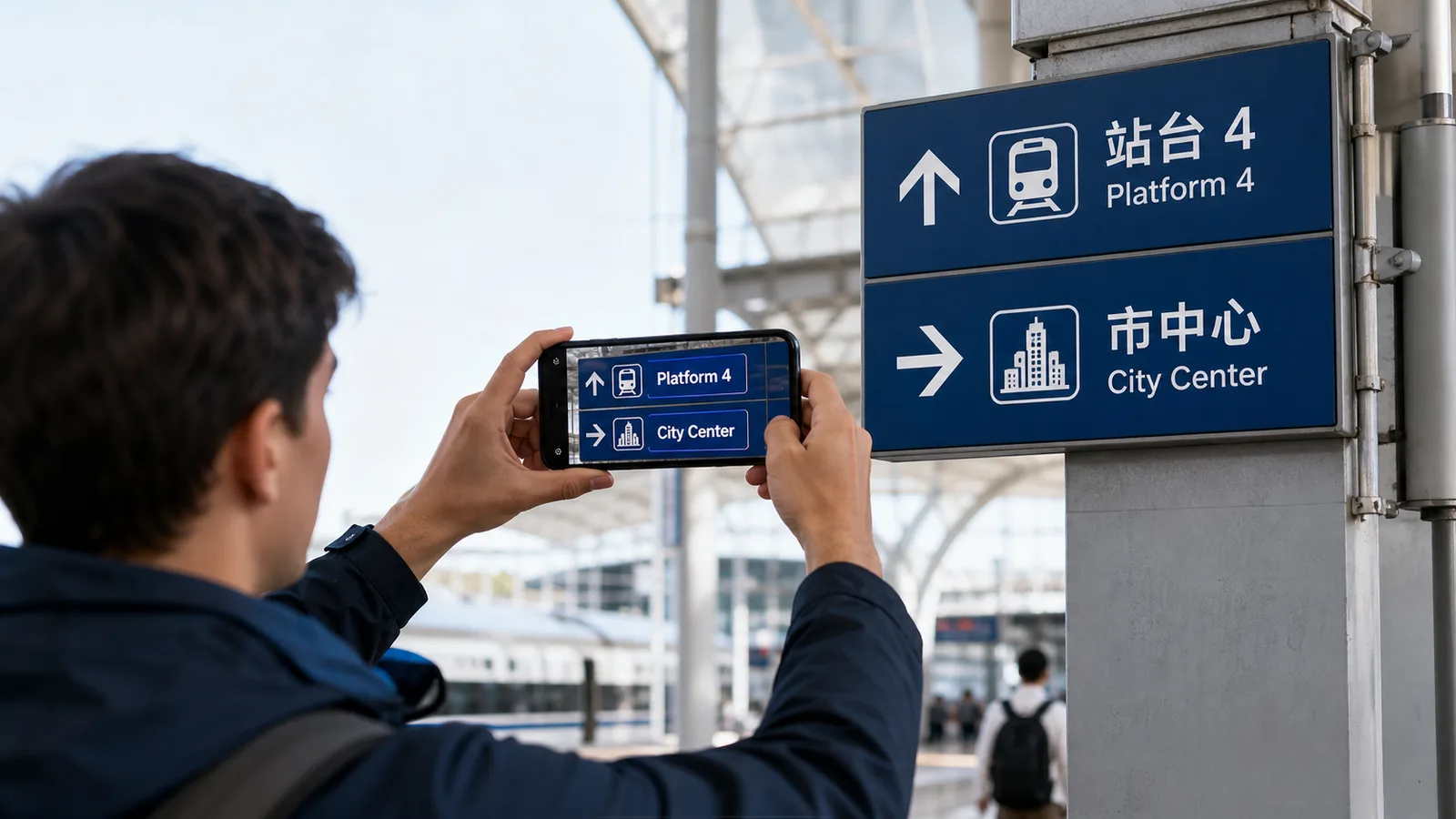
A practical image-translation scenario. This is an original editorial illustration, not a screenshot of Google Translate.
Quick answer: how to use Google Translate for an image
Choose the method that matches where your image is stored:
-
Computer: Go to Google Translate, select Images, choose the language pair, and click Browse your computer.
-
Android: Open the Translate app, choose the languages, tap Camera, then use the live camera or All Images.
-
iPhone or iPad: Open the Translate app, choose the languages, tap Camera, then use the live view or Gallery.
Google's official documentation notes that image translation accuracy depends on text clarity. Small, blurred, low-contrast, or highly stylized lettering may produce weaker results. If the image contains many text blocks or must keep a polished layout, use the comparison checklist later in this guide before choosing a workflow.
How to use Google Translate Image on the web
The browser method is the simplest option when a screenshot, product image, scan, or photo is already on your computer.
-
Open Google Translate in a browser.
-
Select the Images tab at the top.
-
Under From, choose the source language or select Detect language.
-
Under To, choose the language you want.
-
Click Browse your computer and select the image.
-
Review the translated image before copying text or downloading the result.
According to the Google Translate Help page for computers, the result view can show the original beside the translation, copy translated text, and download the translated image. On smaller screens, the side-by-side view may not be available while Show original is enabled.
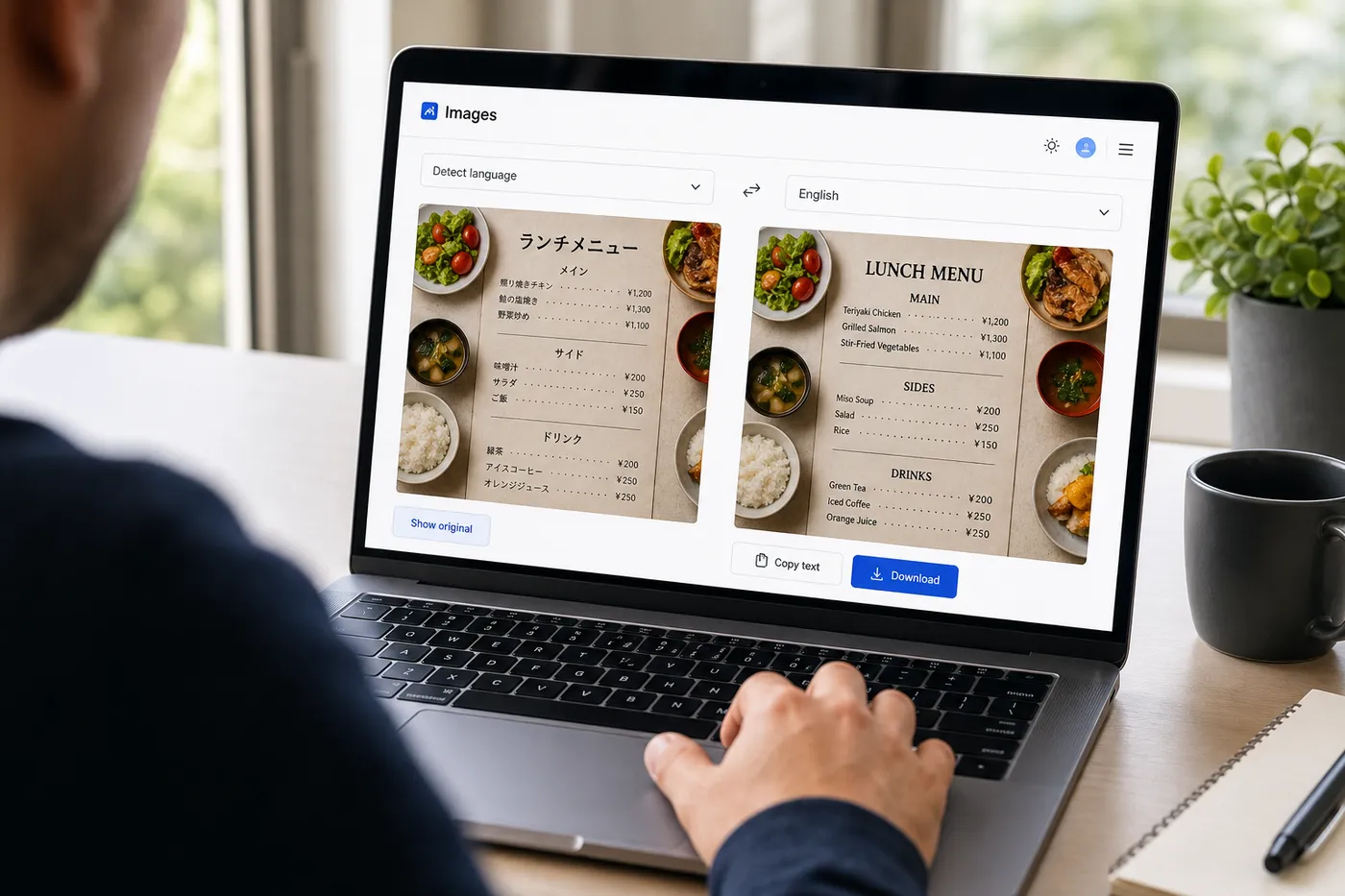
Conceptual browser workflow. The interface is generic and is not a reproduction of Google Translate.
What to check before downloading
Do not judge a translated image only by whether every text area has an overlay. Check the parts that affect meaning:
-
Names, prices, measurements, dates, and model numbers
-
Negatives such as "not," "without," or "except"
-
Reading order in menus, labels, diagrams, and multi-column layouts
-
Text close to icons, edges, or patterned backgrounds
-
Brand names and product terms that should remain untranslated
For a reusable English output rather than a quick lookup, compare the result with a dedicated image-to-English translator. It is especially useful when the translated image itself is the deliverable.
Translating a picture on Chrome, Edge, and other browsers
The web workflow works in every desktop browser, with one practical difference: file picking. In Chrome and Edge, the upload button opens your operating system's file dialog, so the image never needs to be in a specific folder. In browsers with stricter privacy settings, drag-and-drop onto the Images tab is usually the fastest path.
If you translate images often, keep a working folder of originals. Browsers do not remember your previous upload, and re-downloading a translated result does not give you a fresh translation of a retaken photo — you must upload the new file again.
How to translate an image on Android
Google Translate on Android supports both live camera translation and images already saved on the device.
-
Open the Google Translate app.
-
Select the source language, or choose Detect language.
-
Select the target language.
-
Tap Camera on the app home screen.
-
Point the camera at the text and tap the shutter, or tap All Images to select an existing photo.
-
Select a specific word or section if you only need part of the image.
Google's Android image translation instructions also explain how to copy text, listen to a translation, search the translated text, and download languages for offline camera translation.
For live use, hold the phone parallel to the sign or page, fill the frame with the text, and use the flash only when it improves contrast without creating glare.
How to translate a photo on iPhone or iPad
The iOS workflow is similar, but the saved-image control is labeled Gallery in Google's current instructions.
-
Open the Google Translate app on iPhone or iPad.
-
Choose the source and target languages.
-
Tap Camera below the text box.
-
Point the camera at the text for an instant translation, or tap Gallery to choose an existing photo.
-
Tap the shutter to pause the live image when you need time to read it.
-
Select part of the detected text if you do not want the entire image translated.
The official iPhone and iPad guide says downloaded languages can be used for offline camera translation. Feature availability and wording can vary by language pair and app version.

A realistic camera-translation use case. This is an original editorial illustration, not an app screenshot.
Google Translate camera vs Google Lens
Many phones now offer two Google entry points that both translate pictures, and people often mix them up.
Google Translate camera is the translation-first workflow. You set a language pair first, then point or upload. The result is optimized for reading: detected text is translated and displayed in place.
Google Lens (inside the Google app, Chrome, or the camera app on some Android phones) is an object-recognition workflow that also translates. You point at anything, Lens identifies text among other things, and translation is one action you can take on it.
Practical differences worth knowing:
-
Translate camera keeps your chosen language pair between sessions; Lens picks languages automatically and asks when unsure.
-
Lens is stronger at follow-up actions, such as searching the recognized text or copying a specific phrase.
-
Translate camera's All Images / Gallery upload path is more direct when the picture is already saved.
-
On iPhone, Lens-style translation also exists inside the Photos app: open a photo, tap the text in it, and choose Translate from the popup — no app install needed.
If your goal is "translate this picture now," either works. If your goal is a translated image file you keep, both are just the reading step — see the comparison section below for the next step.
How Google image translation works
An image translator has to complete more than one task. First, optical character recognition (OCR) locates and reads the text. Next, a translation model converts that text into the target language. Finally, the interface displays the translation over the image or in a separate text layer.
Each stage can introduce an error. OCR may read a decorative letter as a number. The translation may be grammatically valid but wrong for the context. A longer translated phrase may cover a nearby icon or no longer fit inside the original label.
This is why a result can look complete while still needing review. For directions, warnings, medicine labels, contracts, or other high-stakes content, verify the critical wording with a qualified human rather than relying on a single automated result.
Why Google Translate may not read an image correctly
The text is too small or blurred
Crop the image around the relevant text, use the original file rather than a messaging-app screenshot, and avoid digital zoom. More pixels around each character usually help OCR.
The font is stylized
Decorative scripts, curved labels, outlines, shadows, and handwritten notes are harder to recognize than common printed fonts. Try a tighter crop with stronger contrast.
The wrong source language is selected
Automatic detection is convenient, but it can struggle when an image mixes languages or contains only a few words. Set the source language manually when you know it.
The image has glare or a complex background
Retake the photo from a slightly different angle. Keep the camera parallel to the page and make sure light is even across the text.
The camera feature will not open
On Android and iOS, the Translate app needs camera permission before the Camera mode works. If the screen stays black, check the system permission under the app's settings, then reopen Camera mode. On some older Android devices, camera translation is unavailable and only the upload path works.
The offline language is missing
Offline camera translation needs the language downloaded in advance. Before a trip with poor connectivity, open the app's offline languages list and download both the source language and the target language over Wi-Fi.
The translation is correct but the layout looks poor
Translation and visual reconstruction are separate problems. A quick overlay is often enough to understand a sign, but a product listing, menu, comic panel, or marketing graphic may need a tool designed to preserve the visual hierarchy.
Google Translate vs. an online image translator
The best choice depends on what you need after translation. Compare the two workflows on the situations that actually match your task:
Read a sign immediately
Google Translate camera is the better starting point. The live view is fast, and the phone is already in your hand.
Understand one saved screenshot
Either workflow handles a simple one-off image. If you will not reuse the file, the fastest tool wins.
Copy translated text
Google Translate is convenient because copy controls are built into the result flow on web and mobile.
Produce a shareable translated image
A dedicated image translator is the better starting point, because the final image and its layout are the main deliverable, not a byproduct.
Translate a designed menu
A dedicated menu workflow fits better: prices, sections, and reading order need careful review, and dish names often need manual correction.
Process several images consistently
A batch-capable image translator saves repeating the upload and review steps one by one, and keeps output settings identical across files.
Google Translate is a strong choice for immediate understanding. A dedicated online image translator is a better starting point when you care about a reusable visual result, layout consistency, or a workflow built around uploaded images.
If the source is a restaurant card with multiple sections and prices, use the menu translator. If your actual goal is to erase existing lettering before redesigning the graphic, use Remove Text from Image instead of translating it.
A reliable image-translation checklist
Use the same short checklist whether you choose Google Translate or another tool:
-
Keep the highest-resolution source image available.
-
Confirm the source and target languages.
-
Check every detected text region before trusting the result.
-
Compare names, numbers, prices, and units against the original.
-
Read the translation in the intended order.
-
Confirm that translated text does not cover essential visual details.
-
Ask a fluent reviewer to check high-risk or customer-facing content.
-
Keep the original file so you can compare or retry.
For a fair tool comparison, upload the exact same image, choose the same language pair, and score three things separately: text recognition, translation meaning, and layout quality. Do not treat a visually clean result as proof that every word is correct.
Common use cases
Travel signs and public notices
The live camera is convenient when you need the meaning immediately and do not need a polished output file.
Restaurant menus
Menus combine category headings, item names, descriptions, and prices. Check that the translated reading order still matches the original sections.
Product images
Verify product names, quantities, technical specifications, and safety statements. If the translated graphic will be published, review both language and layout.
Screenshots and social posts
Crop away unrelated interface elements so OCR can focus on the message. Keep usernames and proper nouns unchanged unless there is a clear reason to translate them.
Documents and handwritten notes
Straighten the page, improve lighting, and capture each page separately. Handwriting quality varies, so manually verify important details.
Packaging and allergy labels
Photograph the ingredient panel flat and in full. Translate it, then re-check every allergen word against the original before acting on it — OCR is weakest on the small, dense lettering commonly used on packaging.
Frequently asked questions
Can Google Translate translate an image?
Yes. Google Translate accepts image uploads in a desktop browser and can translate live camera text or saved photos in the Android and iOS apps.
Can I upload a picture to Google Translate on a computer?
Yes. Open Google Translate, select Images, choose the language pair, and click Browse your computer. You can then review, copy, or download the result.
Can Google Translate scan an image on iPhone?
Yes. In the Google Translate app, tap Camera to translate a live view or choose Gallery for a photo already saved on the device.
Can Google Translate scan an image on Android?
Yes. Tap Camera for live text or All Images to select a saved photo. You can also select only part of the detected text.
How do I translate a picture to English?
On the web, open the Images tab, set the target language to English, and upload the picture. In the app, choose English as the target before tapping Camera or opening your gallery. If you need the finished English image to keep the original layout, a dedicated image to English translator is the stronger workflow.
How do I translate a picture from Chinese?
Set the source language to Chinese (or let detection confirm it) and your target language, then upload the picture. Mixed Chinese-English graphics are common on product images and chat screenshots; check that Latin brand names were not force-translated. For layout-sensitive Chinese graphics, use the translate image to English workflow and edit blocks individually.
Why is the image translation inaccurate?
The most common causes are small text, blur, glare, low contrast, decorative fonts, the wrong source language, or a complex layout. Retake or crop the image and check the language settings.
Why is Google Translate camera not working?
Check camera permission for the app in your phone's settings first. Then confirm the language pair supports camera translation, download the offline language if you are without connectivity, and update the app — older versions lose access to Google's translation backend. On unsupported older devices, use the gallery upload path instead of live camera.
Can I use Google image translation offline?
The mobile apps support offline camera translation for downloaded languages. Download the required language before you lose connectivity and confirm that the language pair is available on your device.
Does Google Translate preserve the original image layout?
It can display translated text over an image and provide a downloadable result on the web. For customer-facing graphics where spacing, hierarchy, and consistency matter, compare the output with a dedicated image-translation workflow.
Is Google Translate accurate enough for official documents?
Use it to understand the general meaning, not as the only review for legal, medical, financial, safety, or official content. Have critical translations checked by a qualified human.
Which languages work best for image translation?
Popular pairs such as English–Spanish, English–Chinese, English–Japanese, and English–French are heavily used and generally reliable for printed text. Rare language pairs, vertical text, and non-Latin scripts with complex diacritics produce weaker results and deserve closer review.
Translate your image with the workflow that fits the job
Use Google Translate when speed and immediate understanding are the priority. When you need a clean image you can review, download, and reuse, try Transpic's online image translator with the same source file and compare text recognition, meaning, and layout separately.
Google Translate is a trademark of Google LLC. Transpic is an independent product and is not affiliated with or endorsed by Google.