Understand the menu before you order

Menu Translator for Restaurant Photos, Dishes, and Ingredients

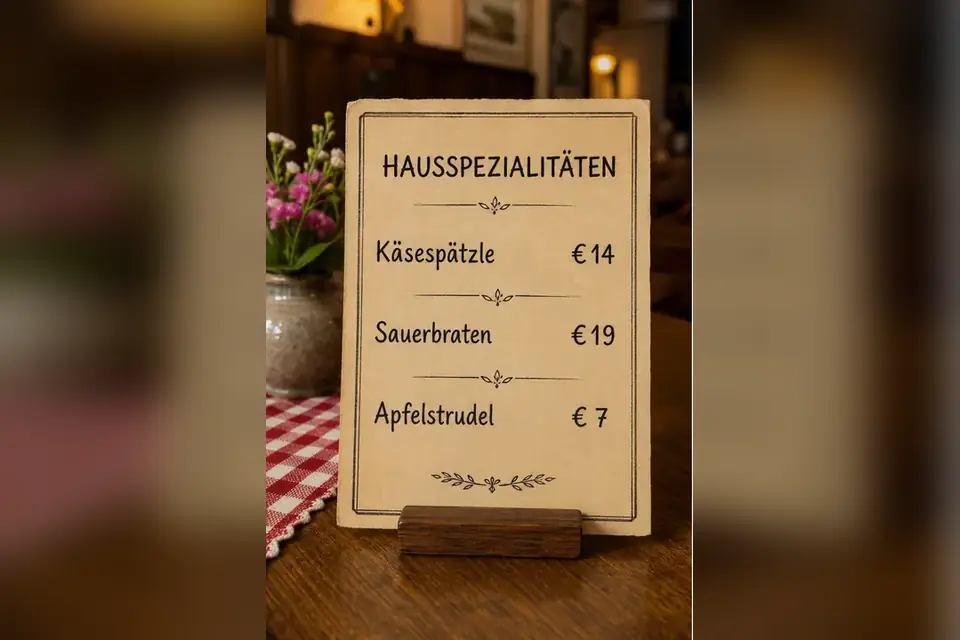
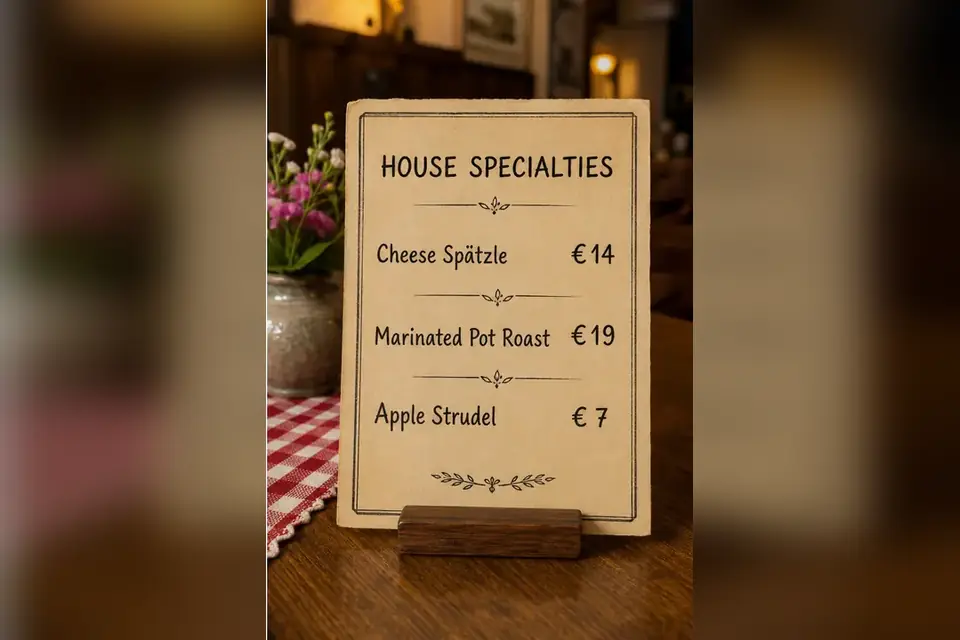
Upload a restaurant menu photo, choose the language you understand, and translate the visible dish names, descriptions, ingredients, and prices without separating the words from the menu that gives them context.

Works in a mobile browserJPG, PNG, and static WebPReview and edit the result

Order with more context

Turn a menu photo into information you can use

A useful menu translator should help you connect each translated phrase with the correct section, dish, description, and price. Transpic keeps the visual menu available while you inspect and correct translated text.

Read the visible wording

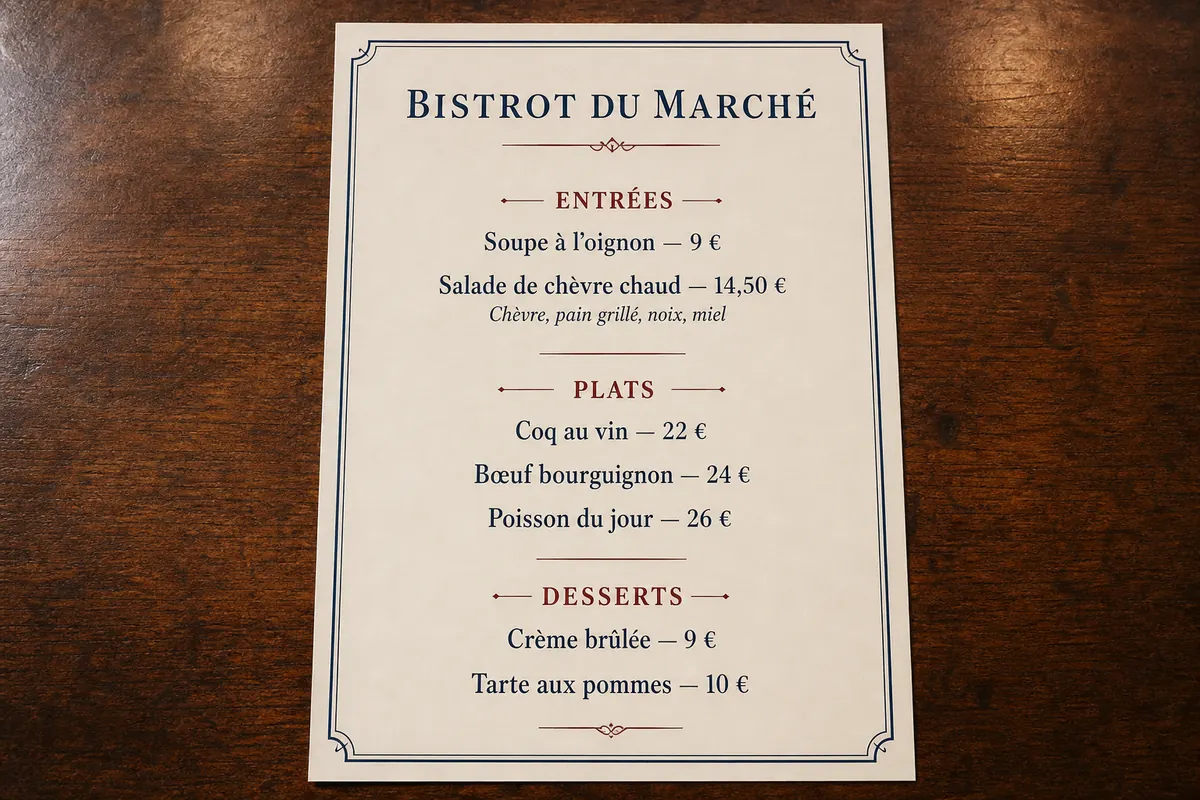
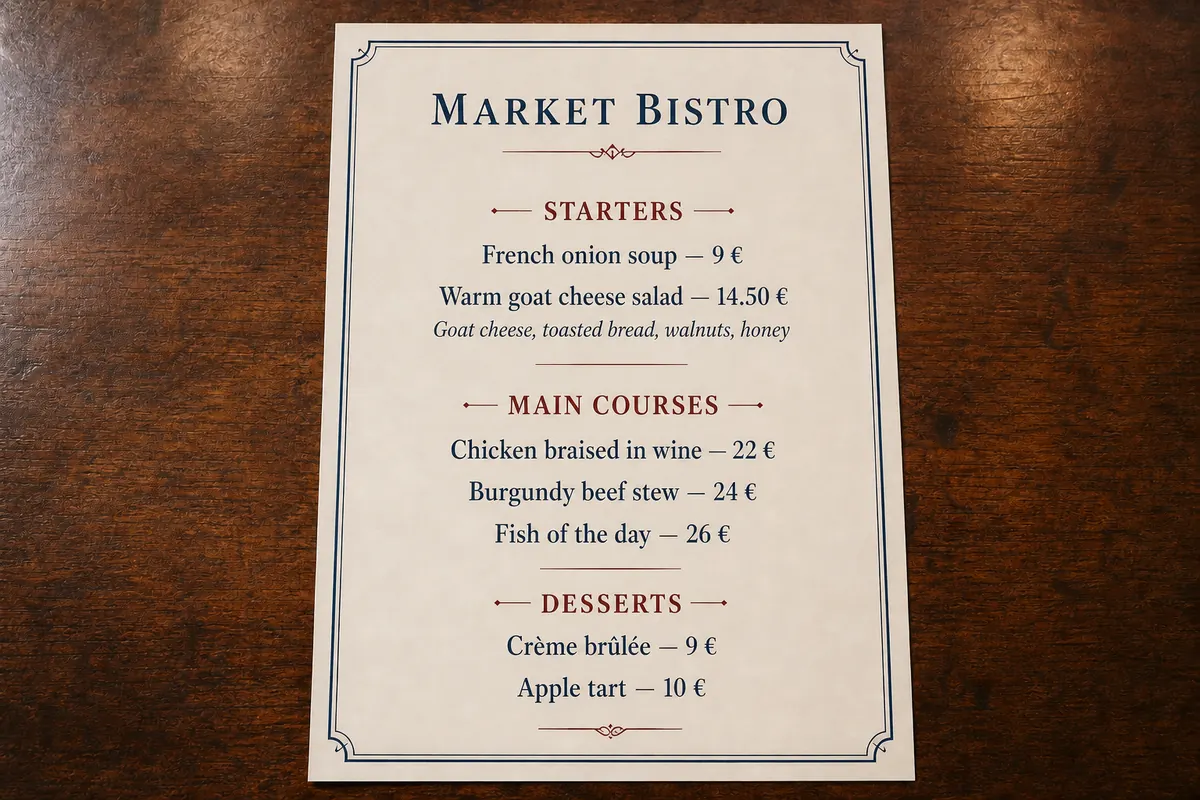
Translate category headings, dish names, short descriptions, printed ingredients, preparation words, and other readable menu text. Keeping those items close to their detected positions makes a dense page easier to scan than a detached transcript.
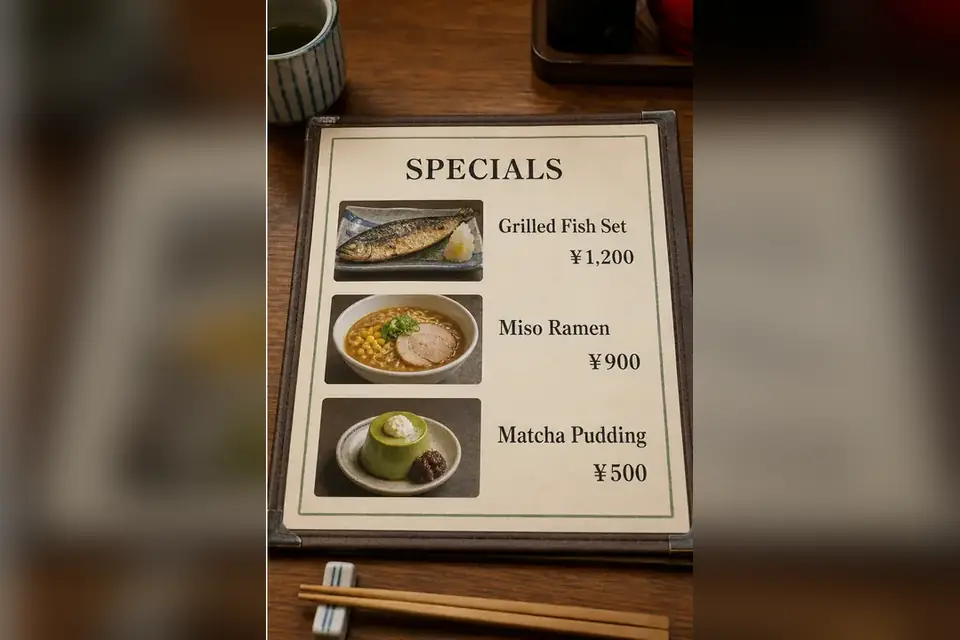
Keep dishes in context

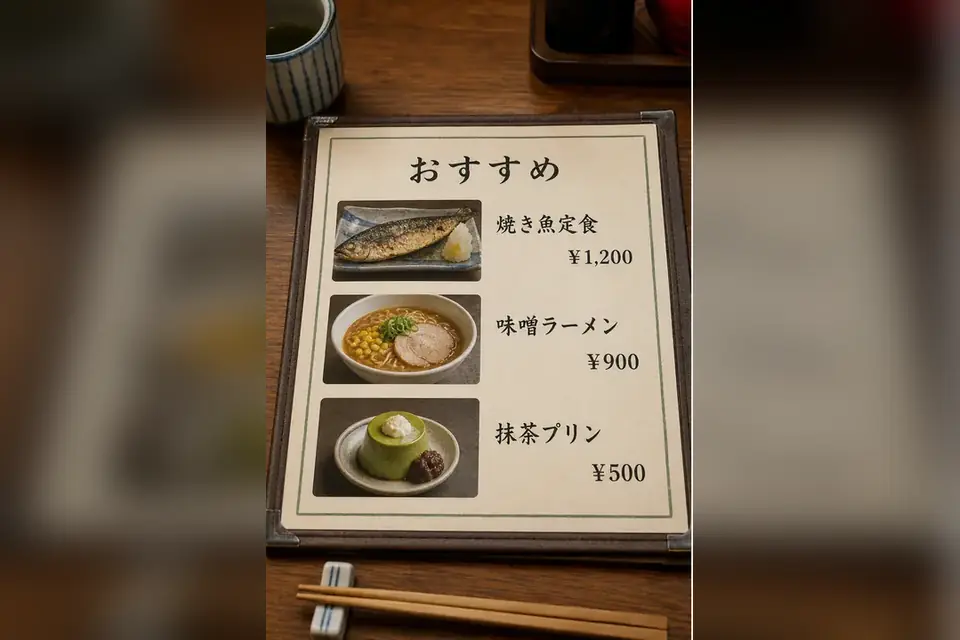
A phrase can mean something different when it is a starter, sauce, cooking method, or regional dish name. Compare the translated block with the original wording, surrounding description, and price before deciding what to order.

Use it during a meal

The upload and review flow works in a modern mobile browser, so travelers can take a photo, select a target language, zoom into the result, and show it to restaurant staff without rebuilding the menu by hand.

Made for the difficult part of dining abroad

Solve the questions that appear at the table

Restaurant menus combine unfamiliar language with compact typography and local food knowledge. The page focuses on helping a diner read what is printed, verify uncertain details, and make a better-informed choice.

Small text and busy layouts

Columns, textured paper, decorative fonts, photos, and tightly spaced prices can make menu OCR difficult. A straight, well-lit photo with all four page corners visible gives text detection and layout placement a stronger starting point.

Dish names that resist literal translation

Regional specialties and named preparations may remain unfamiliar even after translation. Use the translated description and any printed ingredient line as supporting evidence, then ask the server when a name still does not explain the food.

Limited time while ordering

You should not need to type every line into a separate translator. Upload the page, choose your language, and review the translated image. For a long menu, process the page or section you are deciding between first.

Three-step workflow

How to translate a restaurant menu photo

The fastest workflow starts with a readable image and ends with a quick human check. You stay in control of the target language, wording, visual comparison, and exported result.

  1. 1

    Photograph or upload the menu

    Take a clear photo with even light and minimal glare, or choose an existing JPG, PNG, or static WebP. Crop out unrelated table objects when they make the printed text too small.

  2. 2

    Choose your target language

    Select the language you want to read and start the job in General mode. The service detects visible text, translates it, and places editable blocks near the source positions.

  3. 3

    Compare before you order

    Switch between the original and translated views, zoom into small lines, and edit uncertain wording. Confirm important dietary, allergy, and preparation details directly with restaurant staff.

Menu-focused review

Useful controls for checking a translated menu

The menu workflow keeps the translated image as the main result, then organizes detected categories, dishes, prices, and printed descriptions in a review panel. It never invents ingredients or presents an unsupported medical safety result.

Position-aware text blocks

Detected translations remain associated with approximate source positions, helping category titles, item descriptions, and prices stay visually connected. Decorative layouts may still require manual adjustment.

Original and translated views

Use the result comparison to check which source phrase produced each translation. This is especially useful for short culinary terms, similar dish names, tiny footnotes, and prices.

Editable wording and placement

Correct a dish translation, shorten a phrase, or adjust a text block before export. Editing lets you resolve OCR mistakes without taking and processing the entire photograph again.

Private upload workflow

Images use private object storage and short-lived authorization rather than a permanent public image URL. Retention, export, watermark, and usage limits follow the active plan.

Important food safety limit

Treat allergy information as text translation, not a guarantee

The menu translator can translate ingredient and allergen words that are visibly printed in the photograph, such as nuts, shellfish, dairy, eggs, wheat, or gluten. It cannot identify an ingredient that the restaurant did not list, inspect the kitchen, detect cross-contact, or determine whether a recipe changed.

OCR and translation can also misread tiny type, handwriting, glare, low contrast, abbreviations, or regional culinary language. If an allergy, intolerance, religious restriction, pregnancy concern, or other dietary requirement affects your safety, show the original menu and translated result to restaurant staff and ask them to confirm the ingredients and preparation method.

Do not rely on a translated image as medical advice or as the only basis for an allergy decision. When staff cannot provide a clear answer, choose a different dish or restaurant. This cautious review step is more important than producing a smooth-sounding translation.

Ready to understand the menu?

Upload one clear restaurant menu photo, choose the language you read, and review the translated result before you order.

Translate a menu photo