


SELECTIVE AI TEXT REMOVAL

Remove Text from Image

Upload an image, let OCR find its visible text, choose exactly which detected regions should disappear, and generate a clean PNG with the background rebuilt behind the selected words. The workflow removes existing lettering only; it does not translate the image or cover text with replacement boxes.

Choose detected text regionsRebuild the hidden backgroundPreview and download PNG
Independent text-removal mode. The tool first scans the image and pauses for your selection. Background reconstruction starts only after you confirm the text areas to erase.

Upload one image. OCR detection and region selection appear after the image is ready.

Drop an image here

Or choose a JPG, PNG, or static WebP file from your device.

On a supported phone, Take a photo opens the rear camera so you can capture the menu or image directly.

Product advertisement with headline and feature text before removal
Product advertisement after text removal with the textured wall rebuilt
Text removedOriginal

Clean an owned product advertisement

The headline and feature claims are removed from the textured wall while the bottle, icons, leaf shadows, stone pedestal, lighting, and crop remain. Keeping selectable regions means an icon or product object does not have to disappear with nearby words.


REAL REMOVAL SCENARIOS

See the text disappear while the scene remains

Drag each comparison to inspect the difference. These examples focus on three common, legitimate production tasks: preparing an owned product visual for new copy, recovering the clean photo behind a social caption, and turning an authorized storefront design into a reusable blank template.

Product advertisement with headline and feature text before removal
Product advertisement after text removal with the textured wall rebuilt
Text removedOriginal

Clean an owned product advertisement

The headline and feature claims are removed from the textured wall while the bottle, icons, leaf shadows, stone pedestal, lighting, and crop remain. Keeping selectable regions means an icon or product object does not have to disappear with nearby words.
Beach social graphic with a large Weekend Escape caption before removal
Clean beach photo after the social caption was removed from the sky
Text removedOriginal

Recover the photo behind a social caption

Large lettering and a smaller subtitle are erased from the sky. The clean result continues the blue gradient and thin clouds instead of replacing the caption with a flat rectangle, leaving the coastline ready for a new campaign layout.

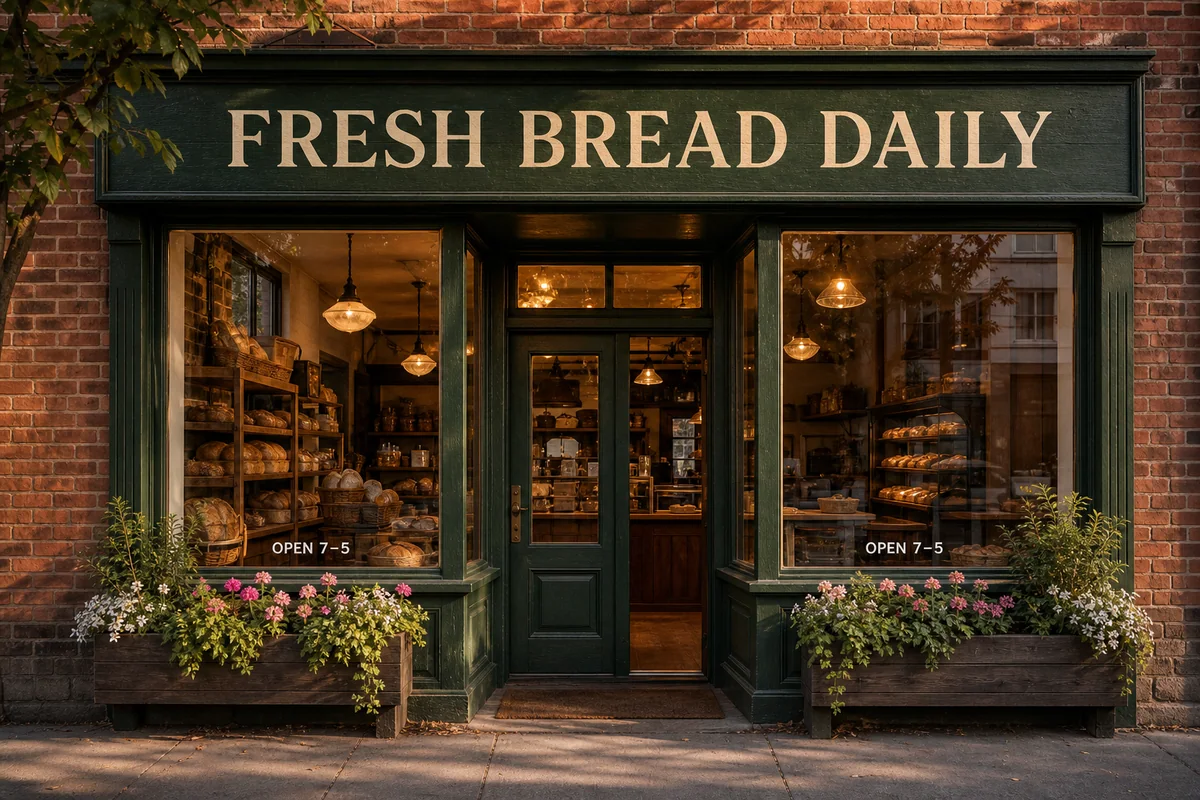
Bakery storefront with sign and opening-hours text before removal
Bakery storefront after text was removed from the sign and windows
Text removedOriginal

Create a blank sign and window template

The painted shop name and two window-hour labels are removed as separate regions. Wood grain, glass reflections, bread displays, brickwork, warm lamps, and flower planters remain available for an authorized redesign.

What the text remover changes

Removal should be local and explicit. The service uses the OCR boxes you approve as edit instructions, expands its attention to visible letter edges, and reconstructs only those written regions. This is different from lowering opacity, hiding translated blocks, or painting a white patch over the words.

  • Letters, numbers, punctuation, and readable caption glyphs inside selected regions
  • Text outlines, glow, antialiasing, and drop shadows associated with selected lettering
  • Only the OCR regions you check before starting background reconstruction

What should remain unchanged

The goal is a clean plate, not a redesigned image. Products, people, scenery, icons, borders, lighting, colors, composition, and canvas dimensions should stay where they were. Complex fills can still require another generation, so always compare the result at full size.

  • People, products, illustrations, icons, and other non-text subjects
  • Original crop, aspect ratio, colors, lighting, borders, and visual hierarchy
  • Readable text regions you leave unchecked in the selection step

HOW IT WORKS

Remove text from an image in five controlled steps

The page separates detection from removal so you can inspect what the system found before committing an edit. That extra checkpoint matters when an image mixes editable captions with model numbers, prices, signs, or text that must remain.

  1. 1

    Upload

    Choose a JPG, PNG, or static WebP containing text you are authorized to edit. Clear exports and straight photos give OCR the strongest starting point.

  2. 2

    Detect

    OCR reads visible lines and returns normalized boxes over the source image. No background pixels are changed during this scan.

  3. 3

    Select

    Check all text or only individual captions, labels, dates, or sign areas. Leave protected names, values, or interface labels unchecked.

  4. 4

    Rebuild

    AI removes the approved glyph regions and infers the nearby texture, gradient, reflection, or scene that should continue behind them.

  5. 5

    Download

    Drag the comparison slider, inspect edges at full size, and download the private clean plate as a flattened PNG when it looks natural.

BACKGROUND RECONSTRUCTION

Different backgrounds require different checks

A text-free result is only useful when the fill matches its surroundings. Flat areas are usually straightforward, while gradients, patterned materials, reflections, faces, and fine geometry require more scrutiny. The examples and review flow make those differences visible rather than promising identical accuracy for every scene.

Flat colors and simple surfaces

Solid walls, uncluttered labels, and broad matte surfaces offer strong surrounding pixels for reconstruction. Check for faint letter halos and make sure a backing plate was included with the selected region when necessary.

Gradients, shadows, and sky

Smooth light changes expose obvious seams if the fill is too uniform. Compare both sides of the removed region and inspect whether cloud wisps, shadows, grain, and color transitions continue naturally.

Detailed photographic scenes

Brick, foliage, glass, fabric, hair, and repeated product details are harder because letters cover meaningful texture. Select only the complete text area, then regenerate if the inferred structure introduces blur or repeated artifacts.

CONTROL BEFORE GENERATION

A text remover built around explicit selection

The core value is not a one-click claim; it is a transparent sequence that lets you see detected regions, decide what can be removed, and verify the generated clean image before downloading it.

OCR text-region detection

Detected lines appear as boxes on the uploaded image and as readable checklist entries, making small captions easier to find on desktop and mobile.

Select all or individual lines

Toggle boxes directly on the preview or use the checklist. The server validates every submitted block against the OCR attempt owned by the current user or guest.

Private clean-plate generation

Only selected OCR polygons are converted into a local mask. Torii receives the original image and that mask, so unchecked text and unrelated regions stay outside the inpainting area.

Private preview and PNG output

Source and clean images are served through actor-scoped private routes. The result is compared in the browser and downloaded as PNG without publishing it to a public gallery.

RESPONSIBLE USE

Only edit images you own or may modify

Use text removal for your own marketing graphics, templates, photos, screenshots, and authorized client work. Do not use it to strip ownership marks, attribution, legal notices, evidence, signatures, official records, or other text when you lack permission or when removal could mislead viewers. Keep the original file for audit and rollback.

COMMON QUESTIONS

Remove text from image FAQ

Practical answers about background repair, selective removal, credits, supported image files, PNG downloads, and private processing.

Create a clean image without the selected text

Upload your authorized image, review the detected text boxes, choose what should disappear, and compare the rebuilt background before downloading the PNG.

Remove Text from Image