Reading-order output
Detected lines follow the OCR sequence so paragraphs, labels, and receipt rows are easier to inspect than an unordered word dump.
ONLINE OCR TEXT EXTRACTION
Turn words trapped in a photo, screenshot, receipt, or scanned page into editable text. Upload or paste an image, review the OCR reading order, correct any character, then copy everything or download a TXT file.
Upload or paste one image. OCR finds the text and returns an editable result.
Guest trial · 1 image up to 3 MB · no sign-upDrop an image here
Or choose a JPG, PNG, or static WebP file from your device.
On a supported phone, Take a photo opens the rear camera so you can capture the menu or image directly.
Extracted text
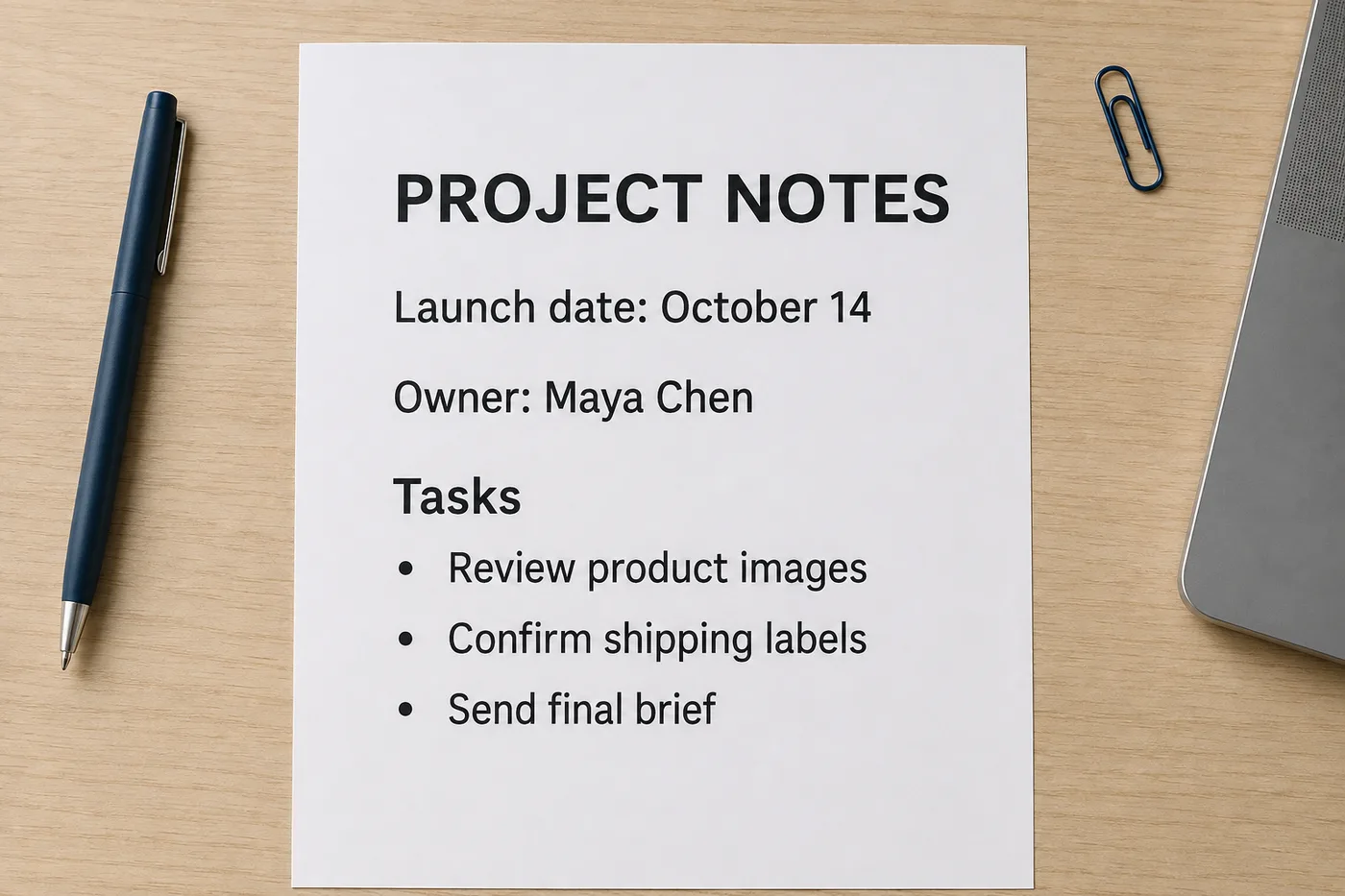
EditablePROJECT NOTES Launch date: October 14 Owner: Maya Chen Tasks Review product images Confirm shipping labels Send final brief
The source stays visible beside the text result so you can compare every line before copying it.
REAL OCR USE CASE
An image to text converter should return more than a decorative preview. It should expose the recognized words, preserve a useful reading order, and let you correct the output before it enters a document, spreadsheet, search index, or workflow.
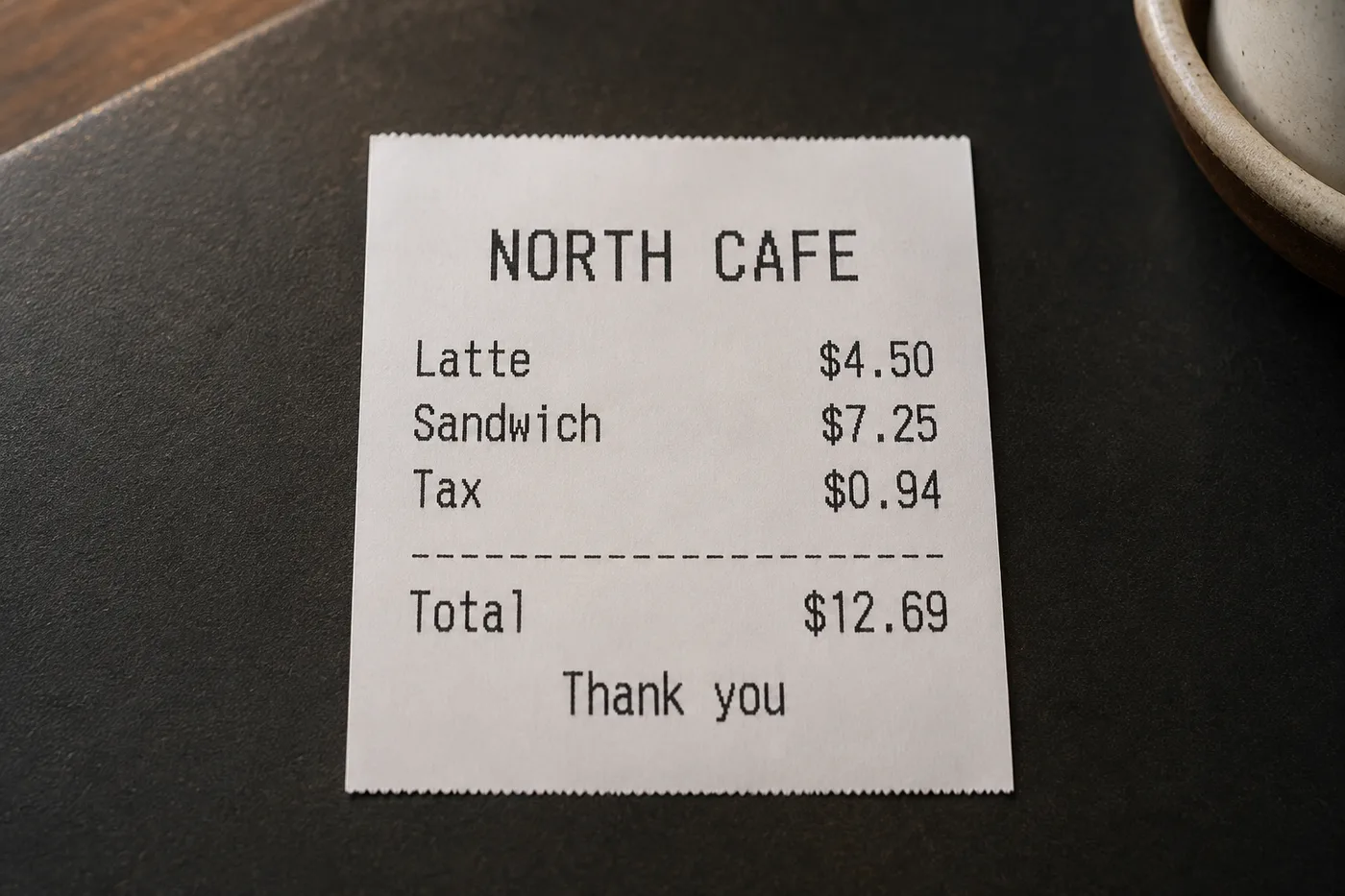
NORTH CAFE
Latte  $4.50
Sandwich  $7.25
Tax  $0.94
Total  $12.69
Thank you
Receipts show why review matters: one missed decimal can change a total. Keep the source image next to the OCR result and verify amounts before reusing them.
Before you export
OCR gives you editable text and TXT export, not an Excel workbook. For receipts or tables, check row and column relationships before pasting the text into a spreadsheet.
Compare each source region with the recognized text, especially on multi-column pages. Correct reading order, decimal separators and missing lines before copying or exporting.
A registered Free account has 2 OCR images per UTC day and can select up to 3 images in a batch. Batch capacity is not an extra allowance; check the available OCR count and plan limits before submitting.
HOW IT WORKS
The complete OCR workflow stays on this page, from selecting the source image to exporting clean, editable text.
Choose a JPG, PNG, or static WebP, drag it into the uploader, take a phone photo, or paste a screenshot from the clipboard.
The converter detects visible text regions and arranges the recognized lines in their estimated reading order.
Compare the highlighted regions with the editable text box. Correct names, numbers, punctuation, and ambiguous characters.
Copy the complete result to the clipboard or download a UTF-8 TXT file for notes, records, search, or further processing.
OCR OUTPUT CONTROLS
The image to text converter prioritizes editable text instead of sending you into the translated-image editor. That keeps the result aligned with the image-to-text task.
Detected lines follow the OCR sequence so paragraphs, labels, and receipt rows are easier to inspect than an unordered word dump.
The text area remains editable. Fix uncertain characters while the source and highlighted OCR regions are still visible beside it.
Use one action to copy the complete reviewed result instead of selecting each detected line separately.
Eligible plans can process several images, switch between their OCR results, and download one combined text file.
PRACTICAL INPUTS
Use the converter when text exists only as pixels and manual retyping would be slow or error-prone.
Extract an error message, chat excerpt, slide, subtitle, or app screen so the words can be searched, quoted, or added to a support ticket.
Capture item names, totals, dates, tracking details, or printed labels, then verify every number against the original image. Thermal paper fades, so photograph receipts when they are fresh — a faded print scanned months later loses contrast that OCR depends on.
Convert a photographed letter, form, worksheet, or book page into a draft you can edit. Direct PDF and Word uploads are not supported on this page, so export one page per image; a straight, evenly lit photo of each page keeps tables and numbered lists in order.
Move meeting notes, classroom material, notices, or instructions into a document without typing each line from scratch.
THREE WAYS TO GET THE TEXT
The same converter covers the different names this job goes by: extracting text from an image, converting a picture to text, or transcribing what is written so it can be copied and reused.
Pull the words out of a screenshot, scan, or photo while the layout stays behind. Extraction keeps the reading order, so the text can be quoted, searched, or pasted straight into a document.
Turn a JPG, PNG, or static WebP into text you can correct in place: fix a misread character, tidy the reading order, and copy the result without retyping it.
Transcribe the writing on a receipt, whiteboard, or label into clean text, then export it as a TXT file or copy just the blocks you need.
ACCURACY CHECKLIST
OCR quality depends on what the camera captured. A few source-image improvements usually help more than repeatedly submitting the same unclear file.
Upload the original photo or scan instead of a compressed messaging-app copy. Small characters need enough pixels to remain distinct; if the source came from a chat app, ask for the original file, because each re-share can recompress the image and blur the letters you need.
Photograph documents as parallel to the page as possible. Strong perspective and curved book pages can disrupt line order, and a page photographed at an angle also skews column widths, which makes the reading order guess less reliable for two-column layouts.
Use even light without glare or deep shadows. Dark text against a clean background is easier to recognize reliably; a lamp to one side is a common cause of half-dark pages, so light the document from the front or reposition near a window.
Remove decorative borders and unrelated interface areas when the useful text occupies only a small part of the image.
Always compare names, prices, dates, measurements, serial numbers, and safety information before using the extracted text.
Upload JPG, PNG, or static WebP images. The service validates the real file type, size, dimensions, and animation status before OCR. Convert PDF pages to images first; animated WebP, PDF, Word, video, and HEIC are not accepted directly.
Uploads use private application storage and protected image routes rather than becoming public gallery assets. OCR can still misread handwriting, curved labels, tiny text, unusual fonts, glare, or mixed reading directions, so review the result before relying on it.
IMAGE TO TEXT FAQ
Answers about extracting text, editable OCR results, free usage, supported files, handwriting, accuracy, and upload privacy.
RELATED IMAGE TOOLS

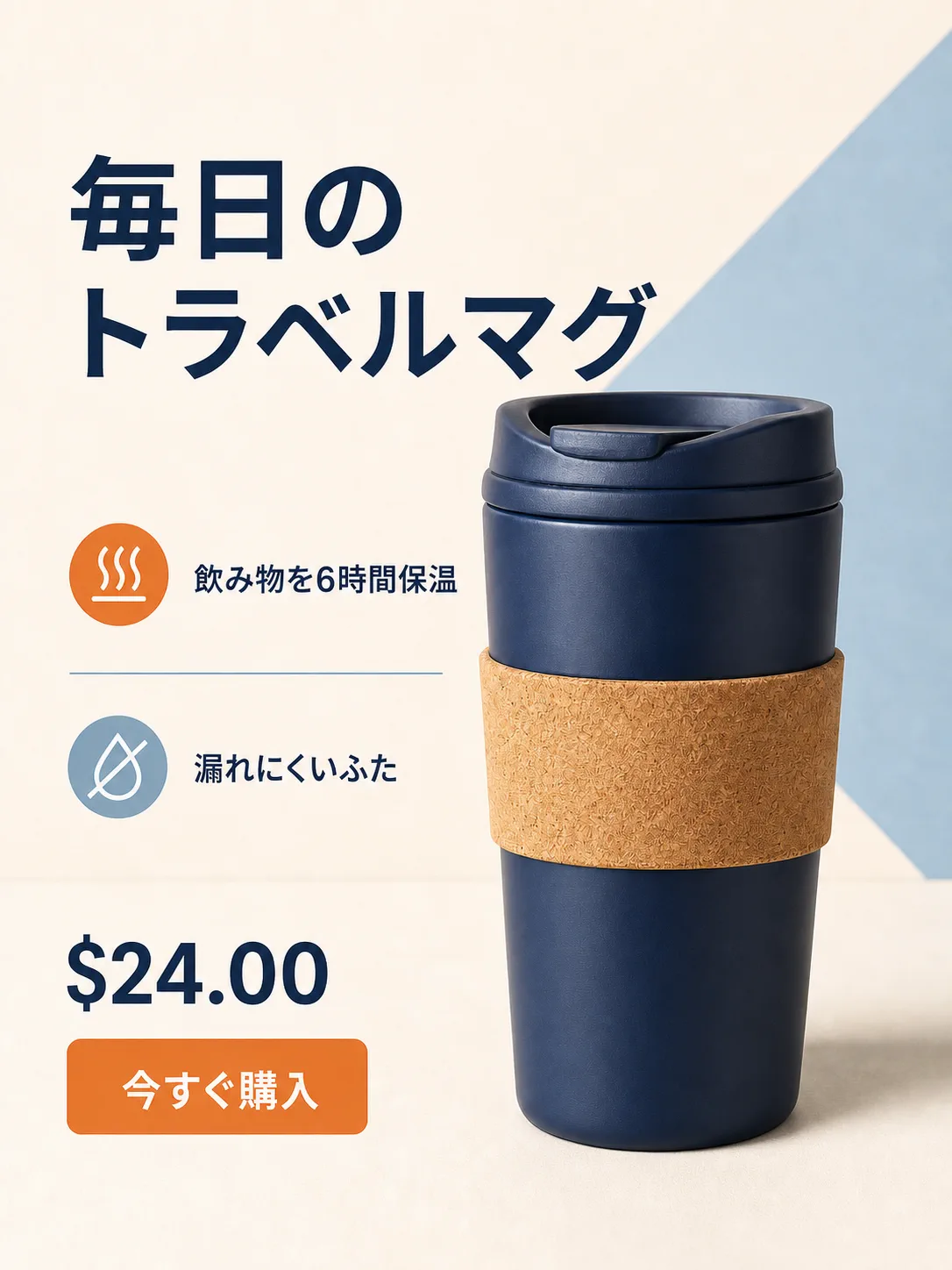
Use the main image translator when the final deliverable should be a translated image that keeps the visual context.
Translate image online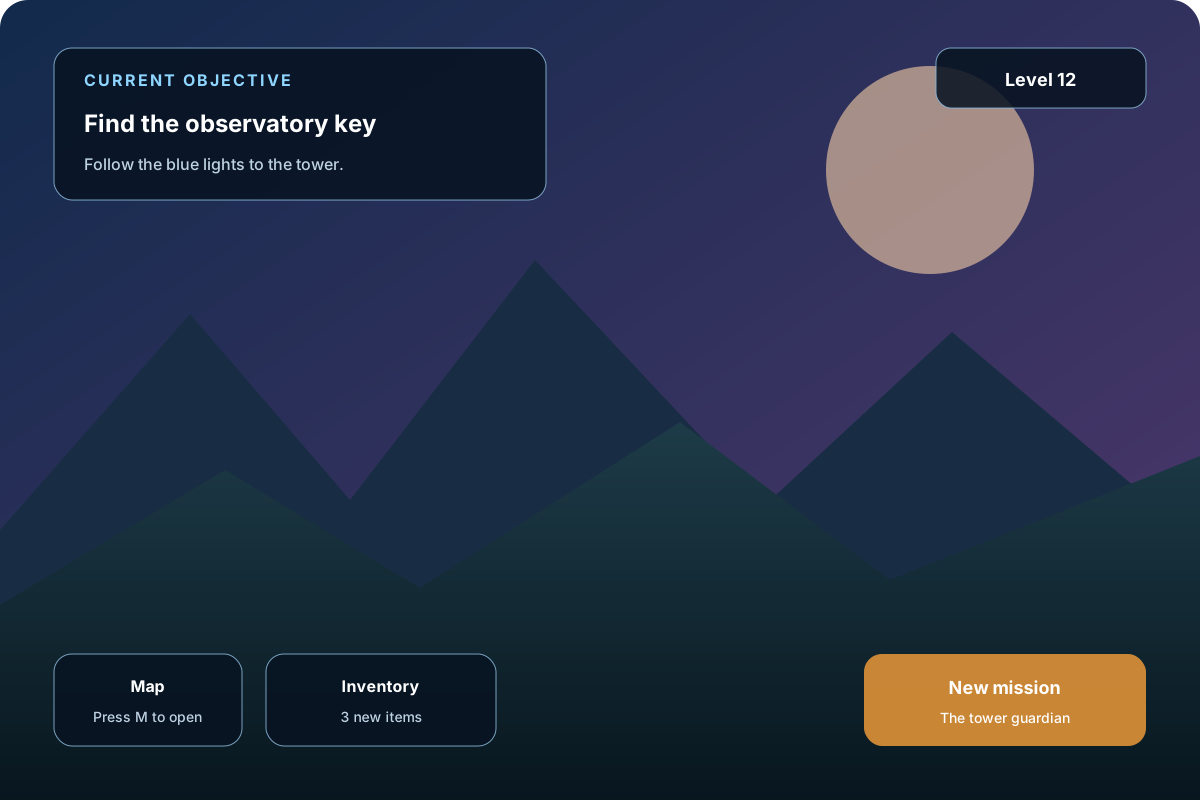
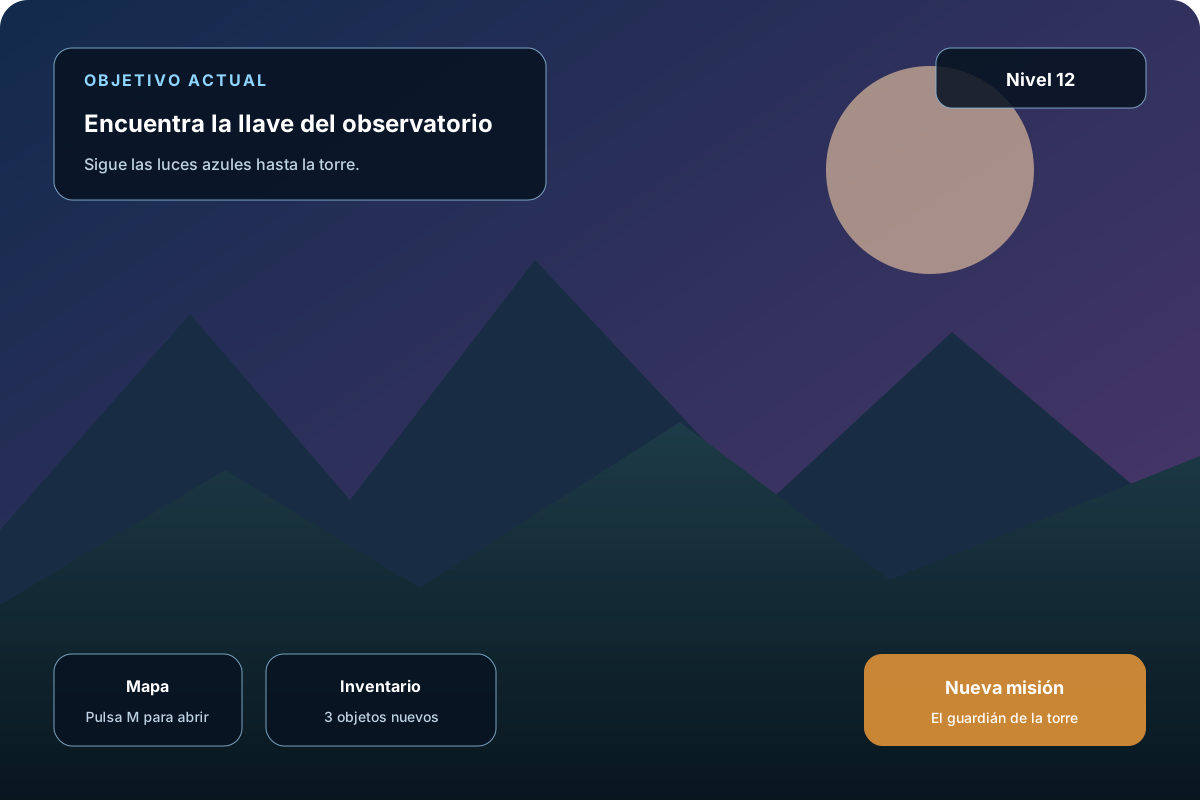
Switch to the screenshot translator when the captured interface should come out as a translated image.
Translate screenshot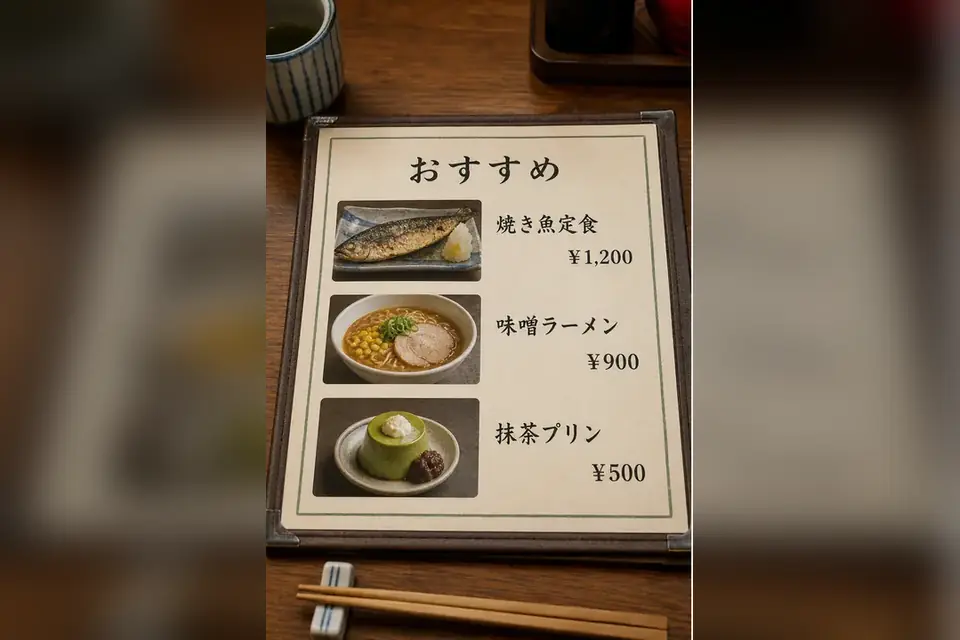
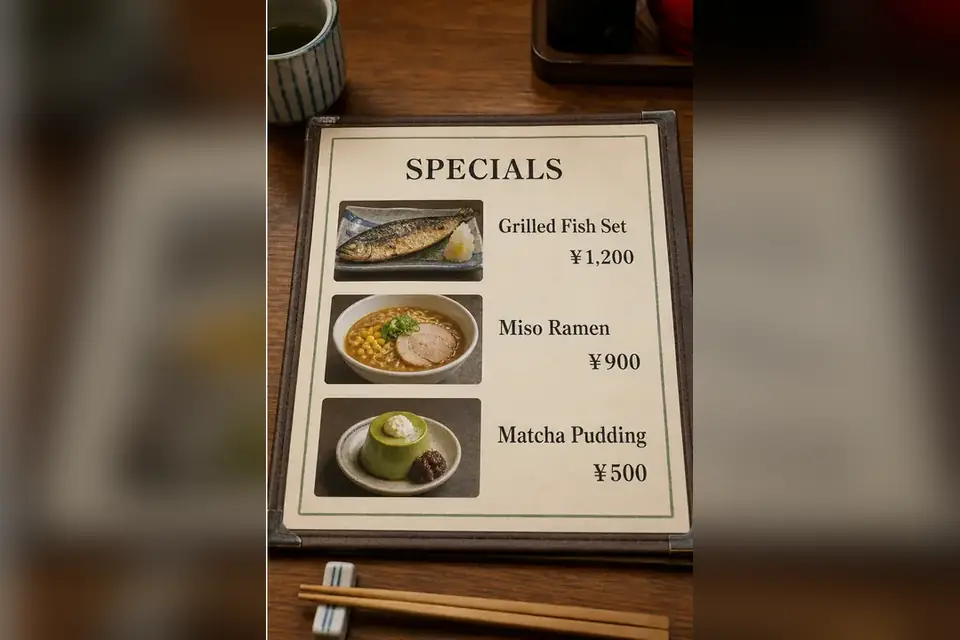
Turn the menu into readable text in your language — dishes, descriptions, and prices you can review before ordering.
Menu translator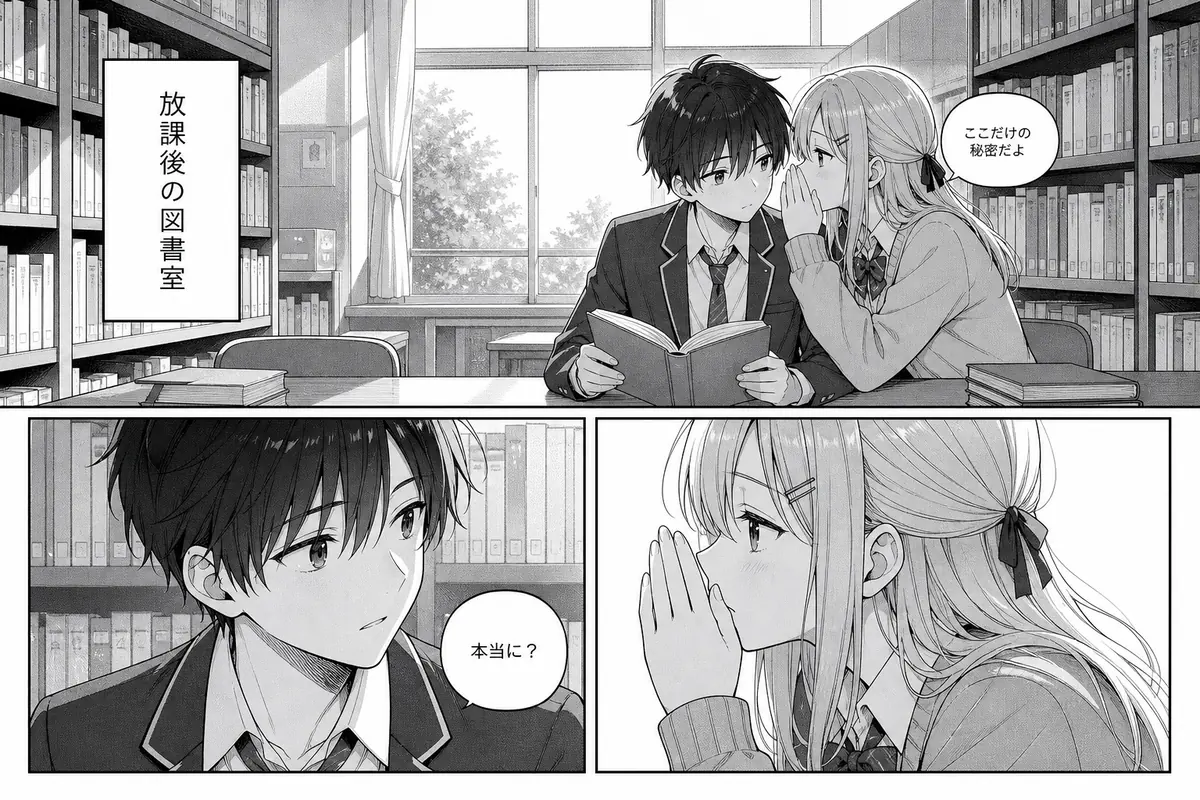
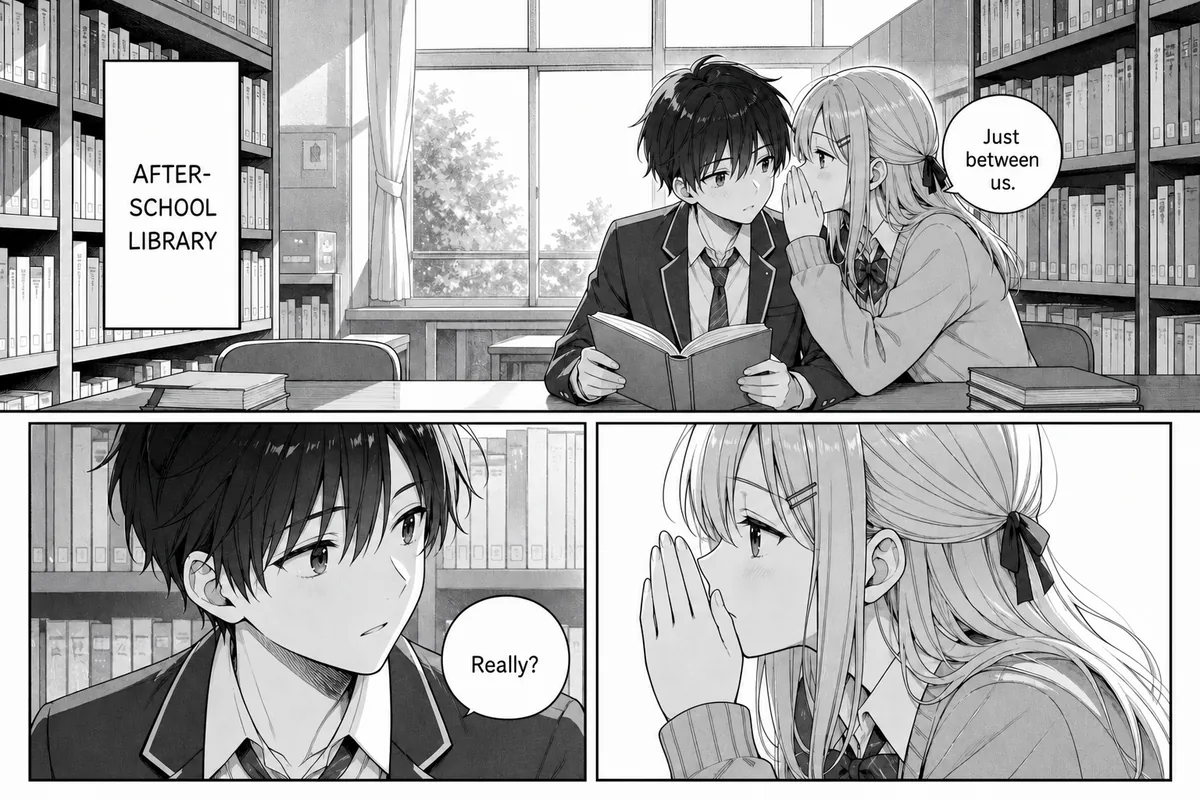
Use the manga workflow for speech bubbles, vertical Japanese text, and panel reading order rather than plain OCR export.
Manga translator

Switch to the text remover when the goal is a clean image without lettering: it erases the detected text and rebuilds the background.
Remove text from imageUpload or paste a clear JPG, PNG, or static WebP. Review the OCR blocks, correct the text, then copy it or download a TXT file.
Open the Image to Text Converter