Transpic image translator logoTranspic

PASTE, TRANSLATE, AND REVIEW

Translate Screenshot Text Without Losing the Screen Layout

Translate screenshot text from a chat, application, game, or website without manually retyping its labels. Paste or upload a capture, choose a target language, then use the screenshot translator to compare and edit the translated image on this page.

Ctrl+V and ⌘V image pasteOCR for compact UI labelsEditable translated blocks
A screenshot is already on your clipboard? Press Ctrl+V on Windows or ⌘V on macOS anywhere outside a text field. The image appears in the uploader without another save-and-browse step.

Paste or upload one screenshot. Translation settings appear as soon as the image is ready.

Paste or drop a screenshot here

Use Ctrl+V, ⌘V, or choose a JPG, PNG, or static WebP screen capture from your device.

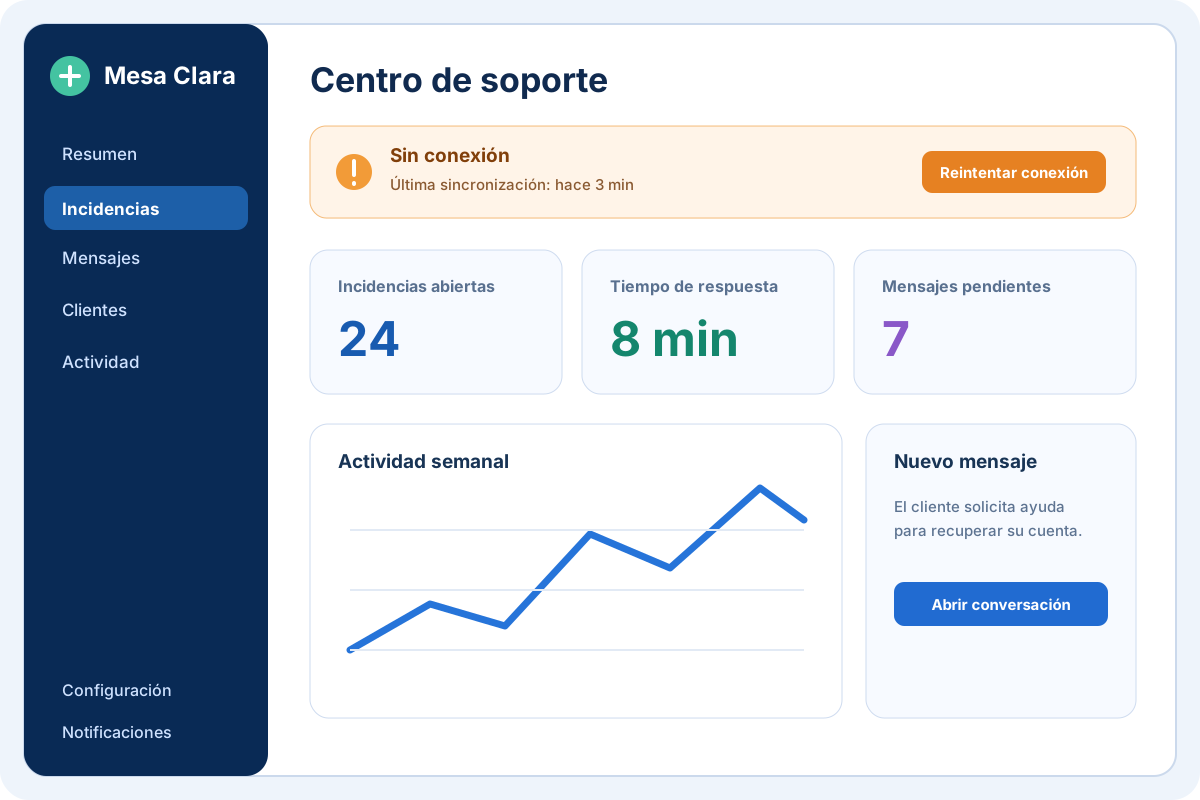
Spanish support dashboard before screenshot translation
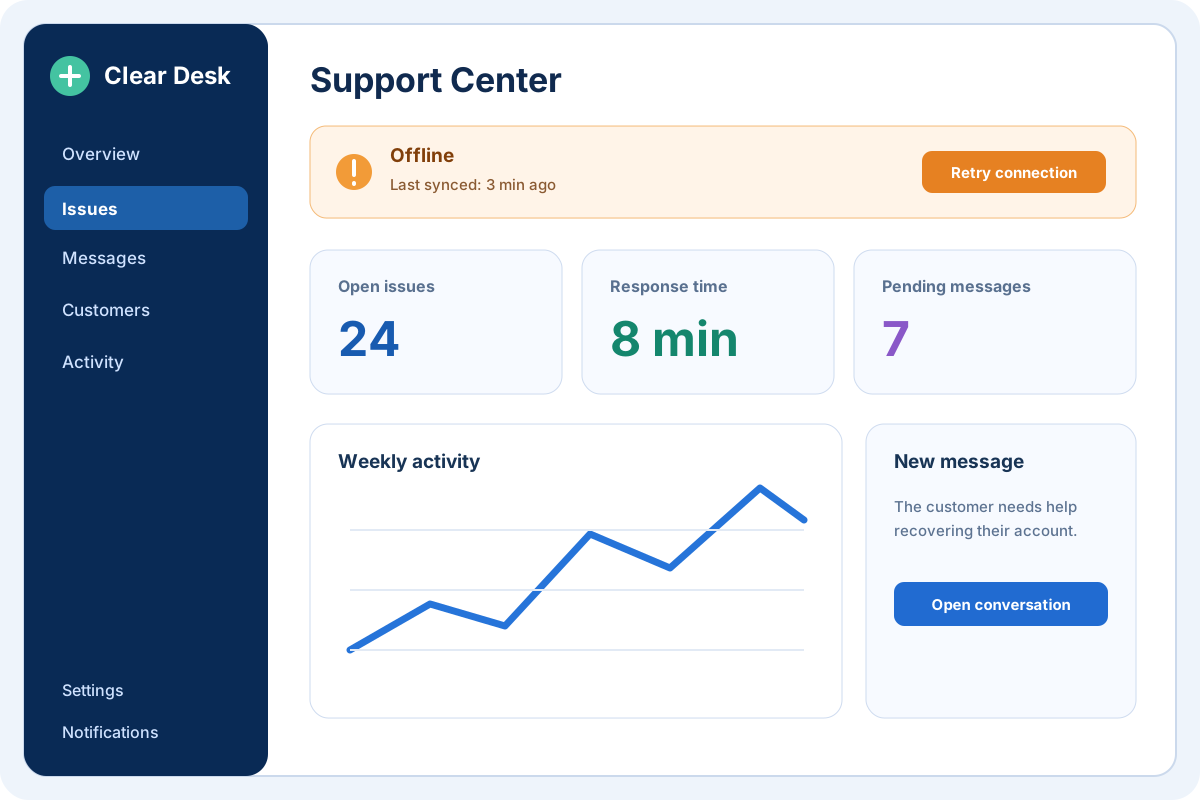
Support dashboard with Spanish interface text translated into English
English translationOriginal screenshot

Translate a software dashboard without losing context

Small navigation labels, warnings, buttons, and status cards remain in their original interface positions so you can understand what each control does.

INTERACTIVE SCREENSHOT EXAMPLE

Translate Screenshot Text in Games and Apps

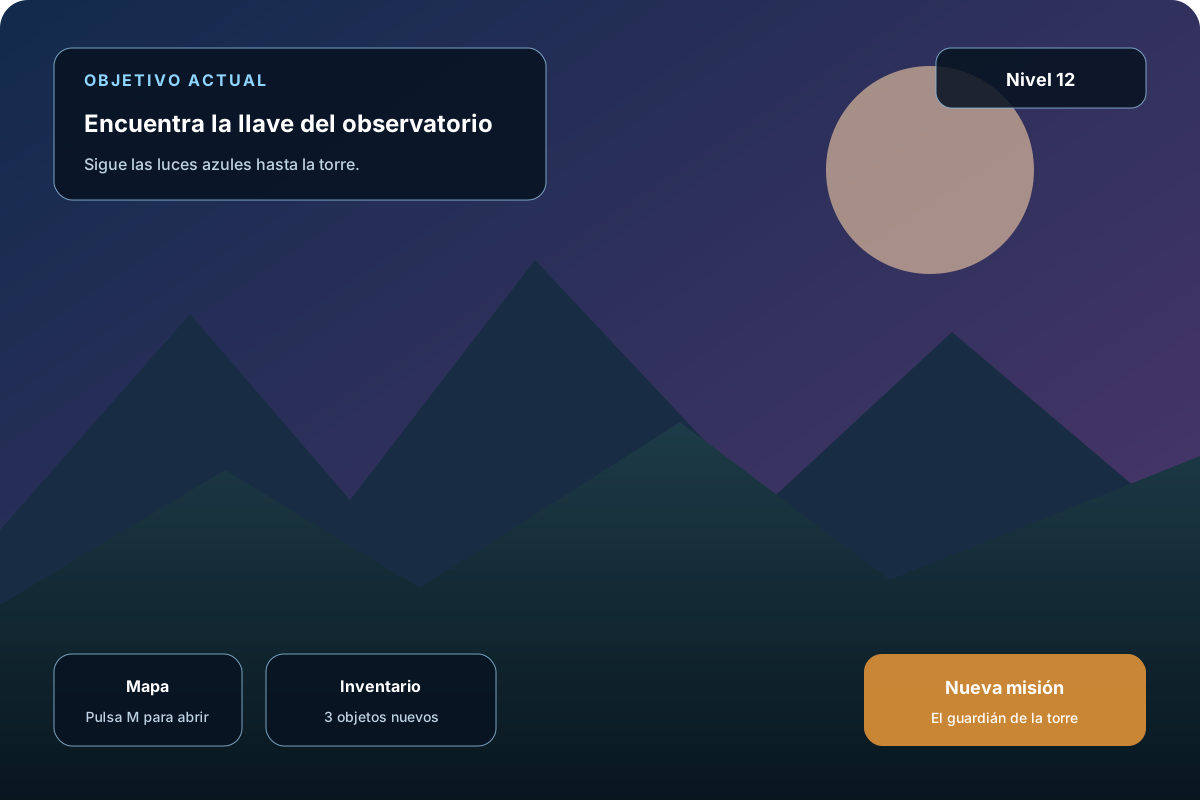
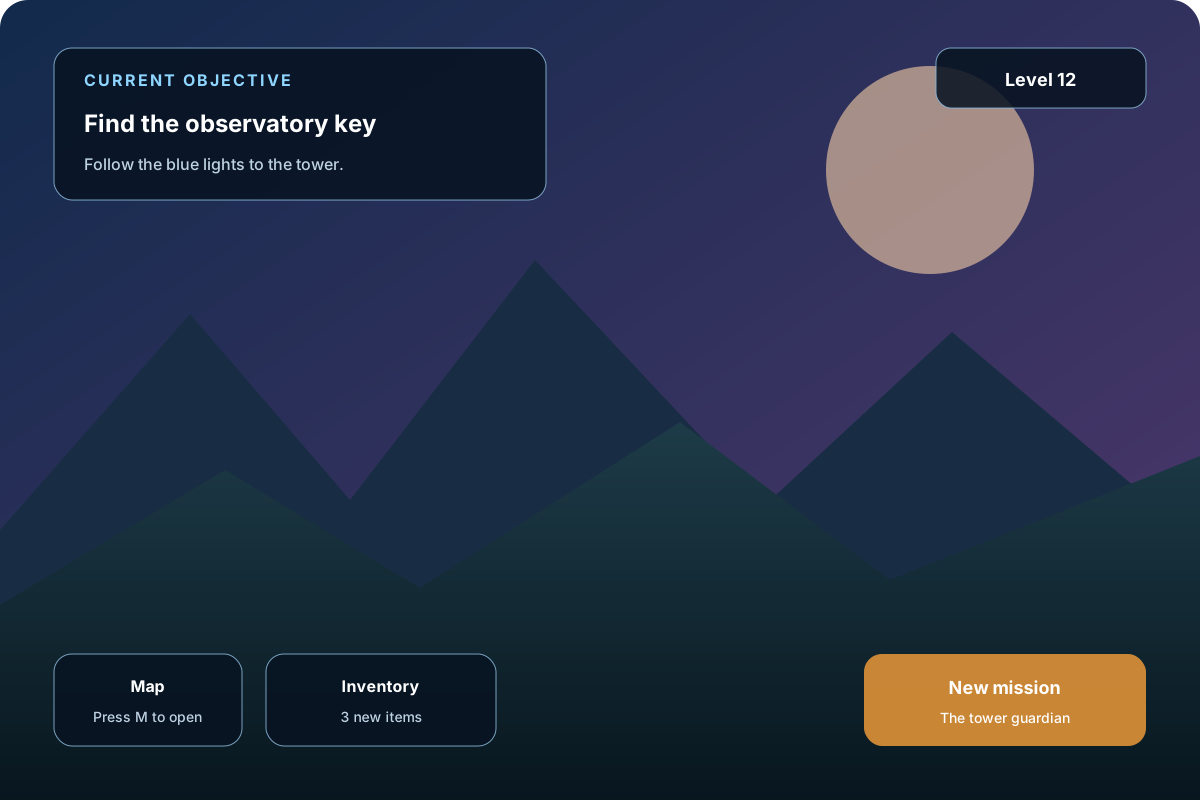
A copied sentence explains the words, but not which objective, button, badge, or notification they belong to. Drag across this example to see why it helps to translate screenshot text in place: instructions stay connected to the underlying interface. The same approach works with software that has no language option, regional applications, and unfamiliar game menus. These are designed examples, not a guarantee that every font or scene will translate perfectly.

  • Objectives and instructions stay beside the scene or control they explain.
  • Short button labels remain easy to match with the original menu position.
  • Numbers, item counts, and level values are preserved instead of being translated as prose.
Spanish game screenshot with objective and control labels before translation
Game screenshot with Spanish objectives and controls translated into English
English translationOriginal screenshot

HOW TO TRANSLATE A SCREENSHOT

How to Translate Screenshot Text with Ctrl+V

To translate screenshot text without retyping it, capture the useful area, paste or upload the image, choose a target language, and review the result. All four steps stay on this page, so you can correct the wording before downloading the translated capture.

  1. 1

    Capture the useful area

    Before you translate screenshot labels, capture the panel or message you actually need. Crop unrelated browser chrome, empty desktop space, and decorative borders when they make the important UI text unnecessarily small. Keep nearby controls when their positions explain the message.

  2. 2

    Paste or upload

    Paste the image with Ctrl+V or ⌘V to translate screenshot text directly from the clipboard. You can also choose a JPG, PNG, or static WebP from your device or drag it into the uploader. On a phone, select the original capture from Photos or the gallery.

  3. 3

    Choose the target language

    Select the language you want to read, then translate screenshot text with automatic source-language detection. Each image and target-language combination creates one result. Keep version numbers, keyboard shortcuts, and product names visible so you can verify them against the original.

  4. 4

    Compare and correct

    When you translate screenshot content, check the result beside its source. Drag between both versions and inspect names, numbers, prices, and short labels. Edit a translated block when the wording needs context, then save the changes before exporting the image.

SCREENSHOT TRANSLATION USE CASES

Translate Screenshot Text from Chats, Games, Apps, and Websites

Screenshot translation is most useful when the placement of the words matters as much as their meaning. These common captures need different reading patterns, but they share the same goal: understand the screen without manually retyping every label.

Understand chat screenshots

You can translate screenshot messages shared by a colleague, customer, seller, or friend while keeping speakers and conversation order visible. Review names, timestamps, emojis, handles, and quoted text because OCR may read them differently from ordinary sentences. Only upload private conversations when you are authorized to process them.
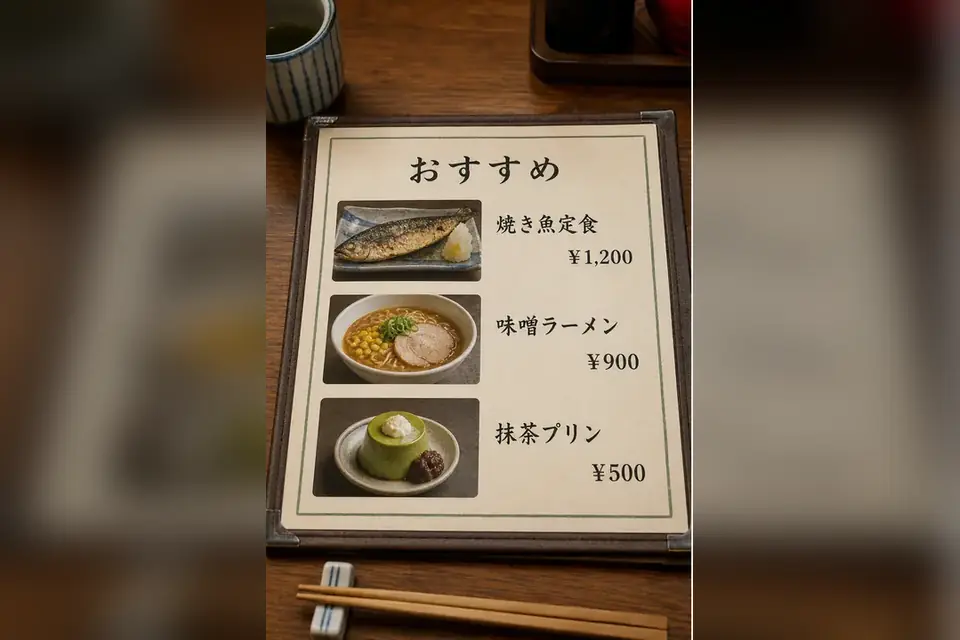
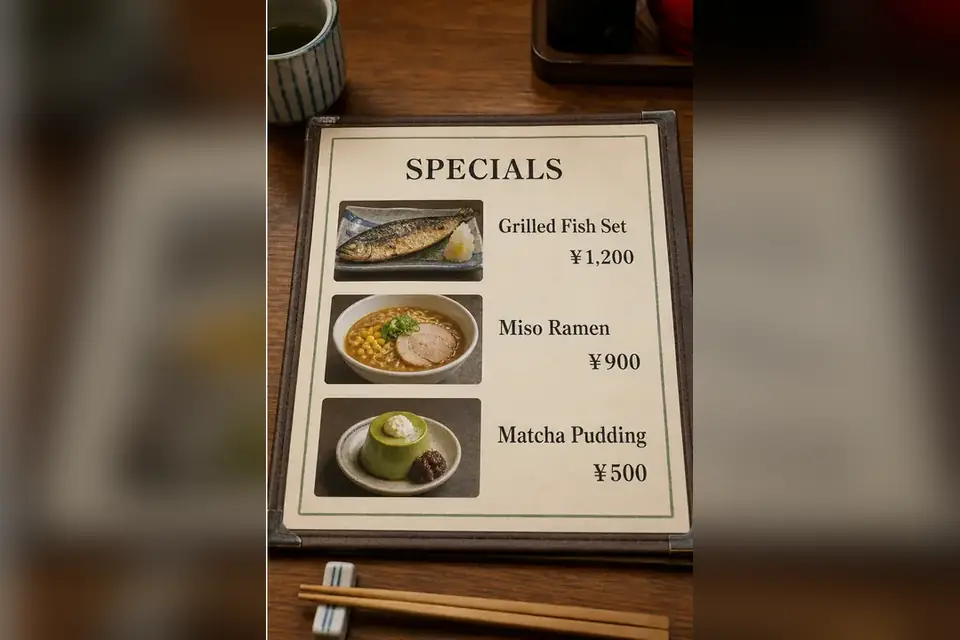
Read game objectives and menus

Players often translate screenshot objectives when a quest, inventory description, tutorial, or achievement notice has no familiar language option. Crop around a tiny subtitle or HUD prompt, then use the game screenshot translator to review item quantities, controller buttons, and character names before acting on the instructions.

Navigate unfamiliar applications

If an application has no language setting, translate screenshot labels from its alerts, onboarding flow, dashboard, or account controls. Keeping the interface visible helps distinguish a destructive action from ordinary navigation. Confirm security and payment actions with official documentation rather than relying on an image translation alone.

Translate website captures

For a saved webpage capture, translate screenshot text from a checkout message, support excerpt, listing, reservation, or regional notice. This helps when the original page is unavailable or its text cannot be selected. A live browser translation may be faster when the webpage remains accessible.

PHONE AND DESKTOP CAPTURE

Translate Screenshot Text on Phone and Desktop

The clearest workflow is to translate screenshot text from the native-resolution file your device creates. Avoid sending it through a heavily compressed messenger first. Use the shortcuts below, keep the relevant interface context, and make sure the characters remain readable at normal zoom before you submit the capture.

Windows screenshots

Win + Shift + S

Use the snipping overlay to select a window or a precise region. Copy the capture, return here, and press Ctrl+V. A tight crop gives small menus and error messages more usable pixels.

macOS screenshots

⌘ + Shift + 4

Capture a selected region, then upload the saved PNG. If you copy a screenshot to the clipboard, use ⌘V on this page instead of exporting and locating another file.

iPhone screenshots

Side + Volume Up

Capture the current screen, crop status bars or unrelated panels in Photos, then choose the image from the uploader. Keep the original-resolution file when interface text is small.

Android screenshots

Power + Volume Down

Use the device screenshot shortcut or quick-settings control, crop only when needed, and upload the original capture. Long screenshots may make every label smaller, so split them when precise reading matters.

Translate Screenshot Labels with Better OCR

To translate screenshot labels reliably, OCR first needs enough pixels to distinguish their characters. Compact menus mix tiny labels, pale helper text, icons, and badges. A native capture is usually clearer than a camera photo of a monitor. Review critical wording against the original even when the rest of the screen looks accurate.

  • Crop to the relevant panel when the useful text occupies only a small part of a large desktop screenshot.
  • Use the original capture instead of a thumbnail or messaging-app preview that has already reduced the resolution.
  • Switch the source application to a higher-contrast theme when pale gray labels disappear into the background.
  • Verify usernames, product names, abbreviations, prices, dates, shortcuts, and numbers before acting on the translation.

Translate Screenshot Text with Private Uploads

Screenshots can expose account names, conversations, order numbers, addresses, or internal software details. Transpic stores uploads in private application storage and serves them through protected routes rather than a public gallery. Retention follows the active plan, and you should remove a completed job when you no longer need its editable result. Do not upload credentials, recovery codes, payment-card data, medical records, or material you are not allowed to process.

You control when the saved job is removed

Download the translated screenshot first, then use the delete action in translation history to remove the job and its associated assets. Automatic retention limits remain a fallback, not a reason to keep sensitive captures longer than necessary.

SCREENSHOT TRANSLATOR FAQ

Frequently Asked Questions

Translate Screenshot Text from Your Next Capture

Copy a clear screenshot from a chat, game, application, or website. Paste it above, select the language you need, then review the translated interface without leaving this page.

Open the Screenshot Translator